APPS

Connect

Pool Controls Connect

Pool Controls Connect turns your smartphone into a powerful control centre for your saltwater chlorinator. With a simple Bluetooth connection, you can monitor, schedule and finetune your pool’s chemistry right from your phone. It works with all Bluetooth-enabled models regardless of cell size, displayed below:

SG
SWC
XLS
XLM

Note: Bluetooth-enabled models have a Bluetooth sticker on the right-hand side of the unit.
Quick Start Guide

Android Setup

1. App Installation

  • Download the app from the Google Play store
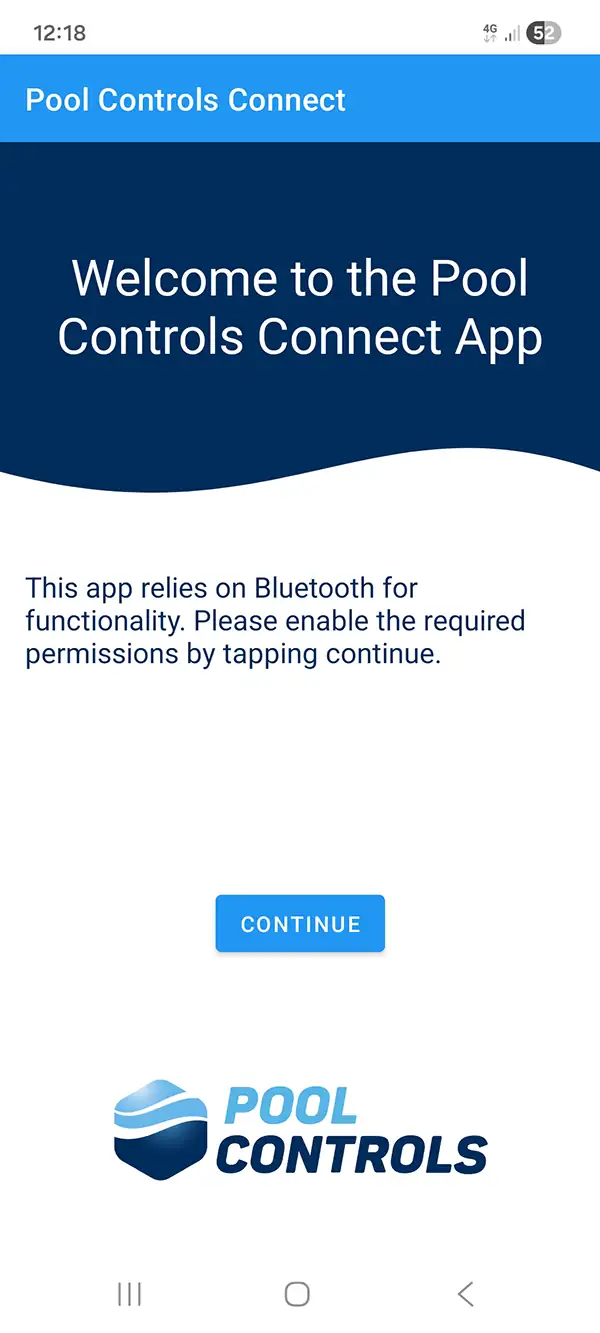
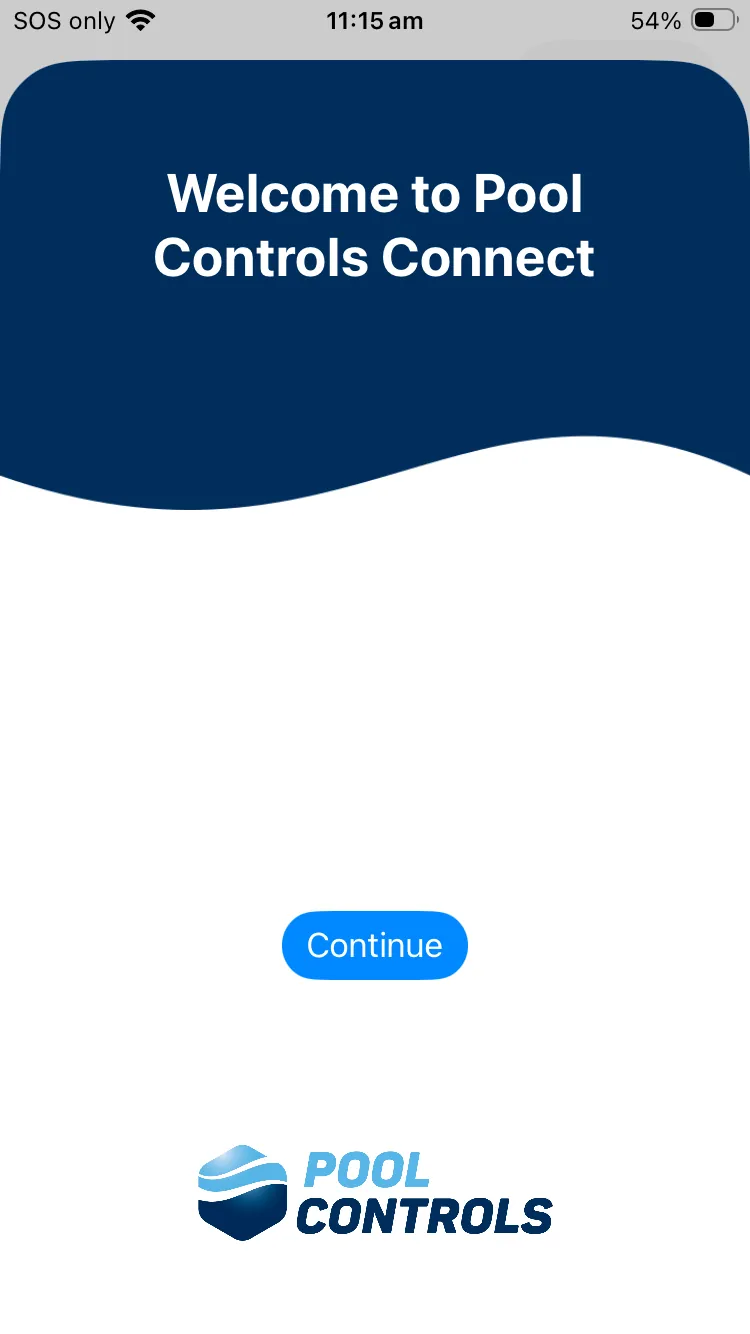
  • When the app is opened, you will see the following screen:

2. Welcome Screen

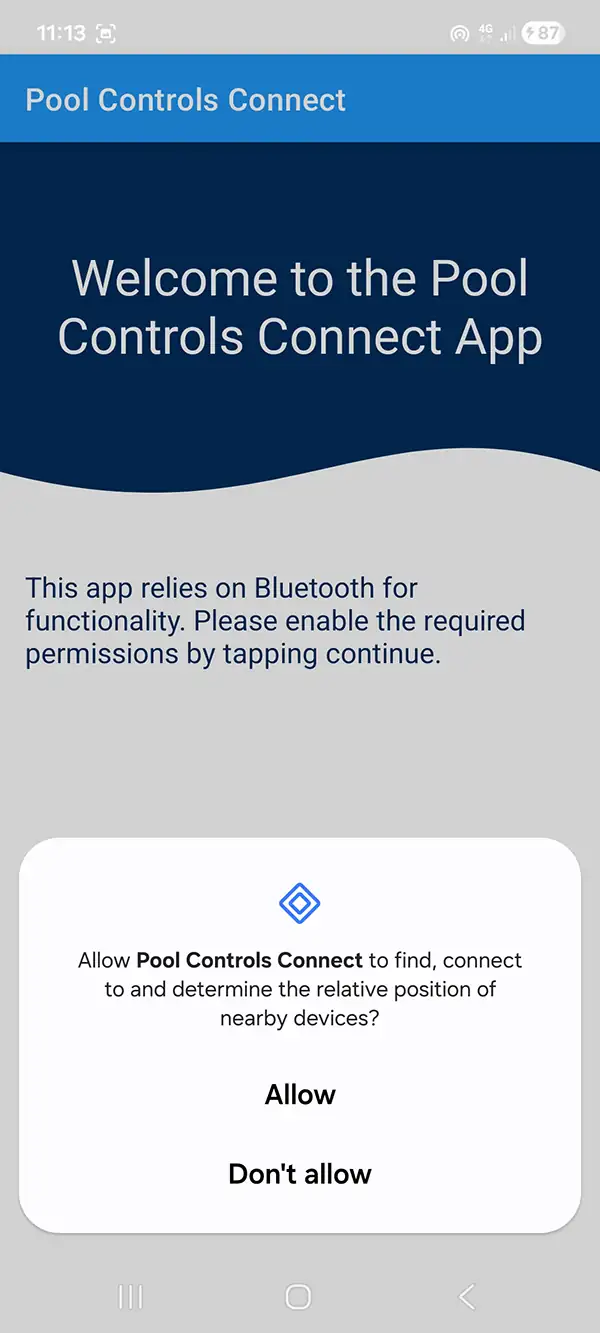
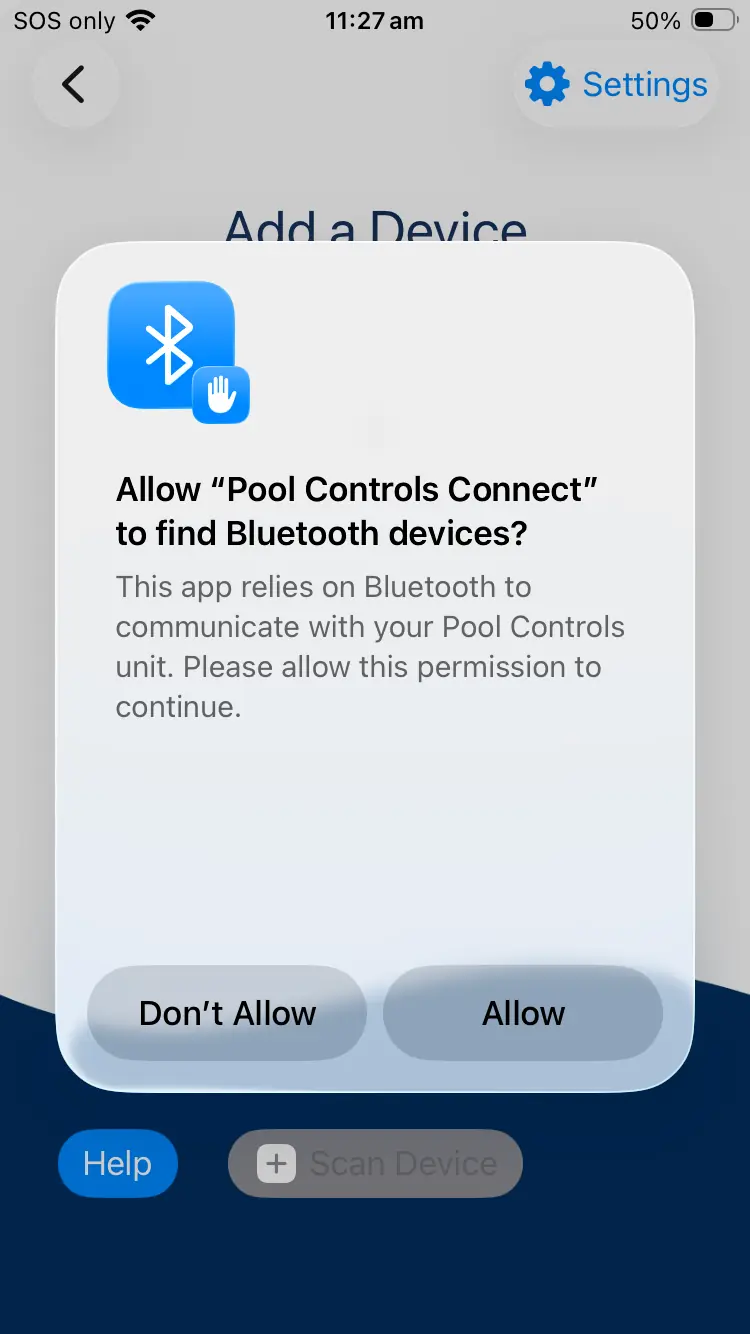
3. Accepting Permissions

  • Press the "Continue" button to bring up the permissions dialogue box and allow the permission. For Android 11 and older the "Locations" permission will be required. For Android 12 and newer the "Nearby Devices" permission is required.
    Note: The app does not collect your location information and is only required due to Android's Bluetooth Scanning policy for older Android Devices.

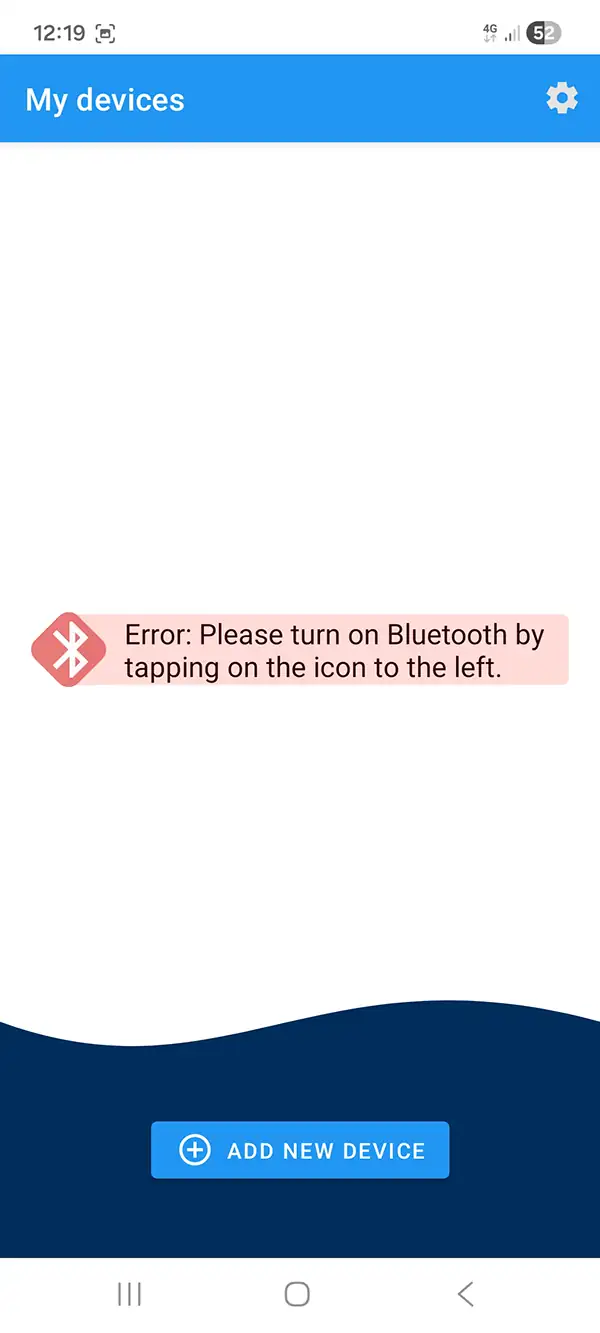
4. Checking Bluetooth is Enabled

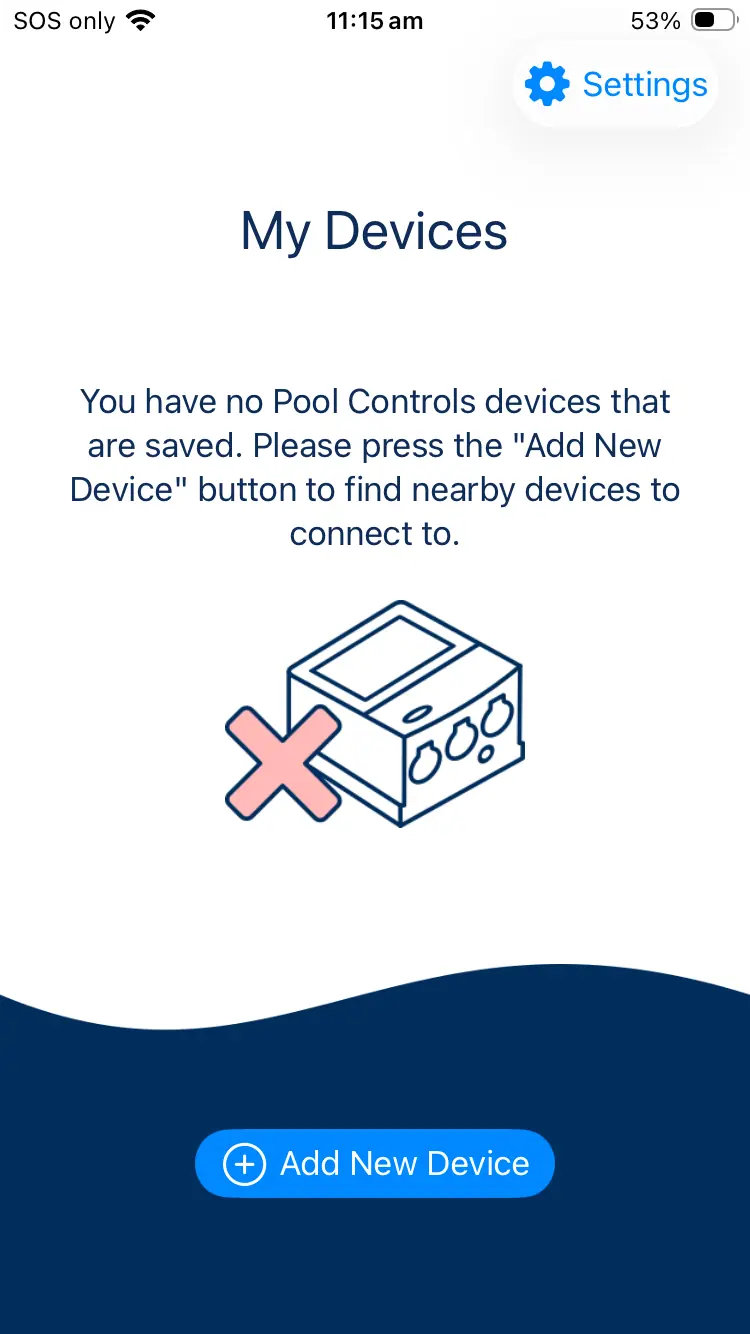
  • You should now see the "My Devices" screen. If you haven't turned on Bluetooth, you will see a prompt telling you to turn it on. You can turn it on via settings or by pressing the diamond icon.
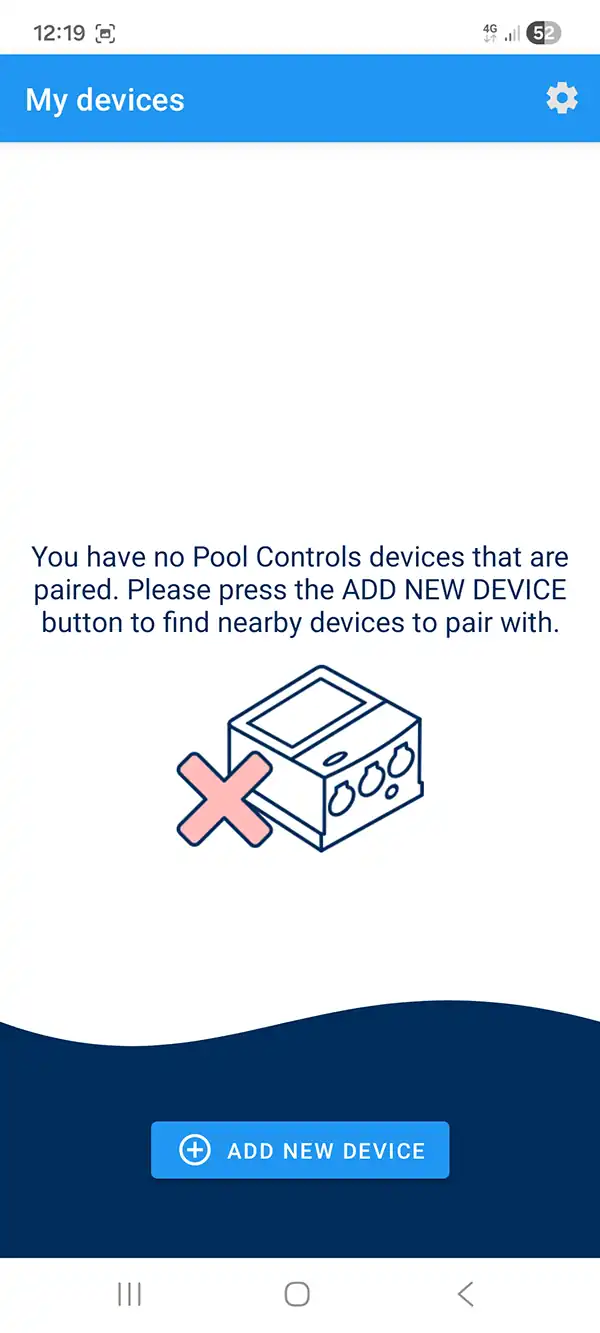
  • Once Bluetooth is on the "My Device" screen will show that no devices are paired, this is normal as you haven't setup a device yet.

5. Scan for New Devices

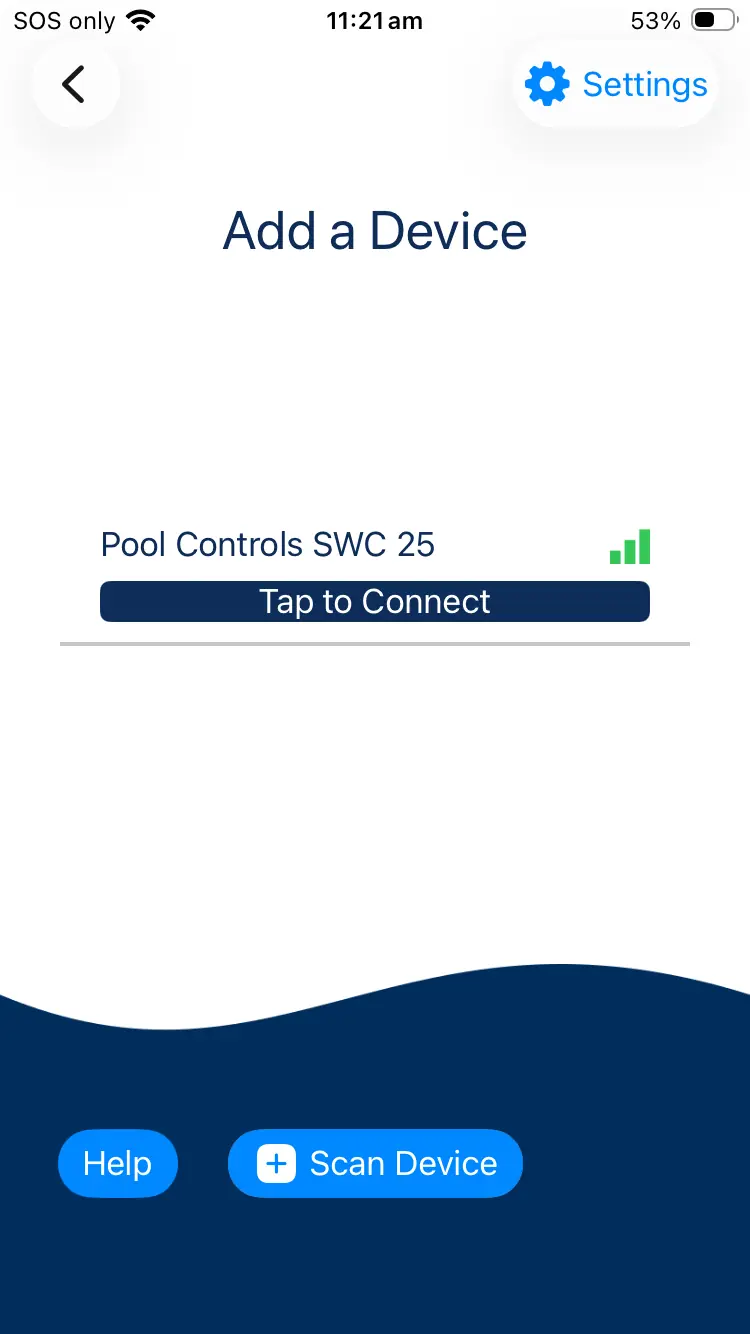
  • Press the "Add New Device" button to proceed with the set-up. Note: You will be prompted to turn on location if your device is running Android 11 or older. You can turn off location once the chlorinator unit is setup.
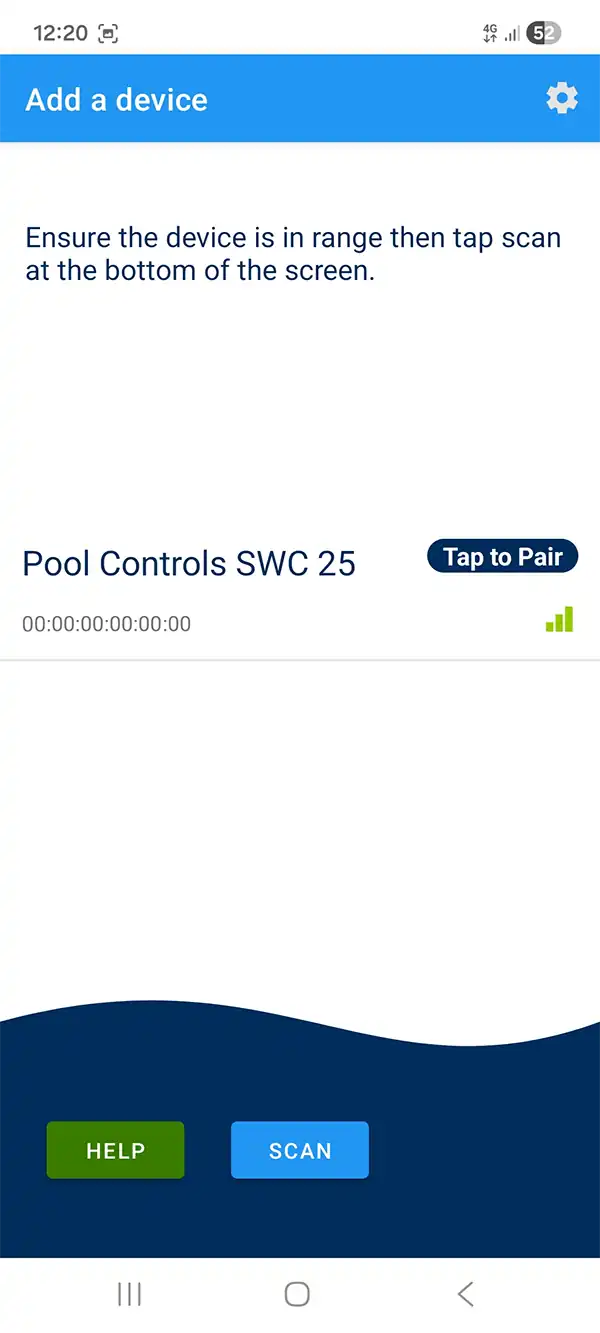
  • Press "Scan" and wait for your Pool Controls chlorinator to appear as shown:

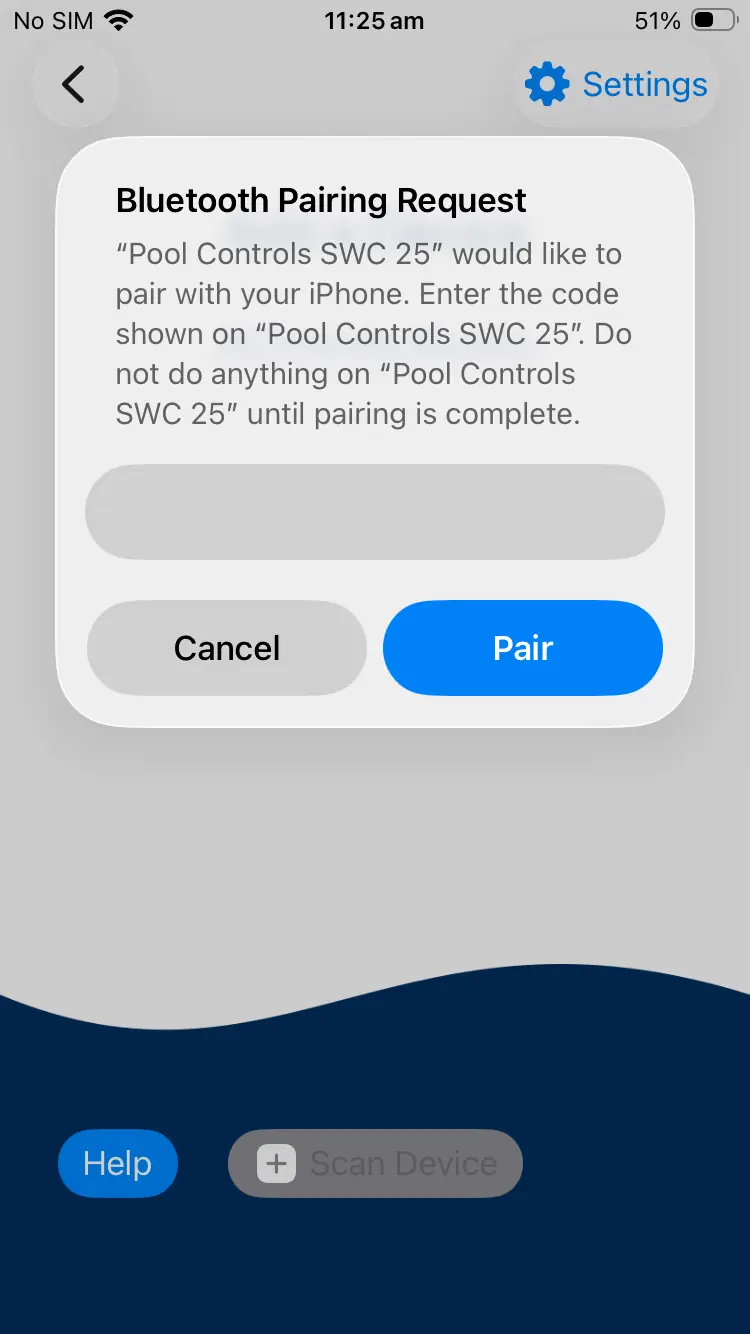
6. Initiating the Pairing Process

  • Tap on the chlorinator's name being the pairing process.
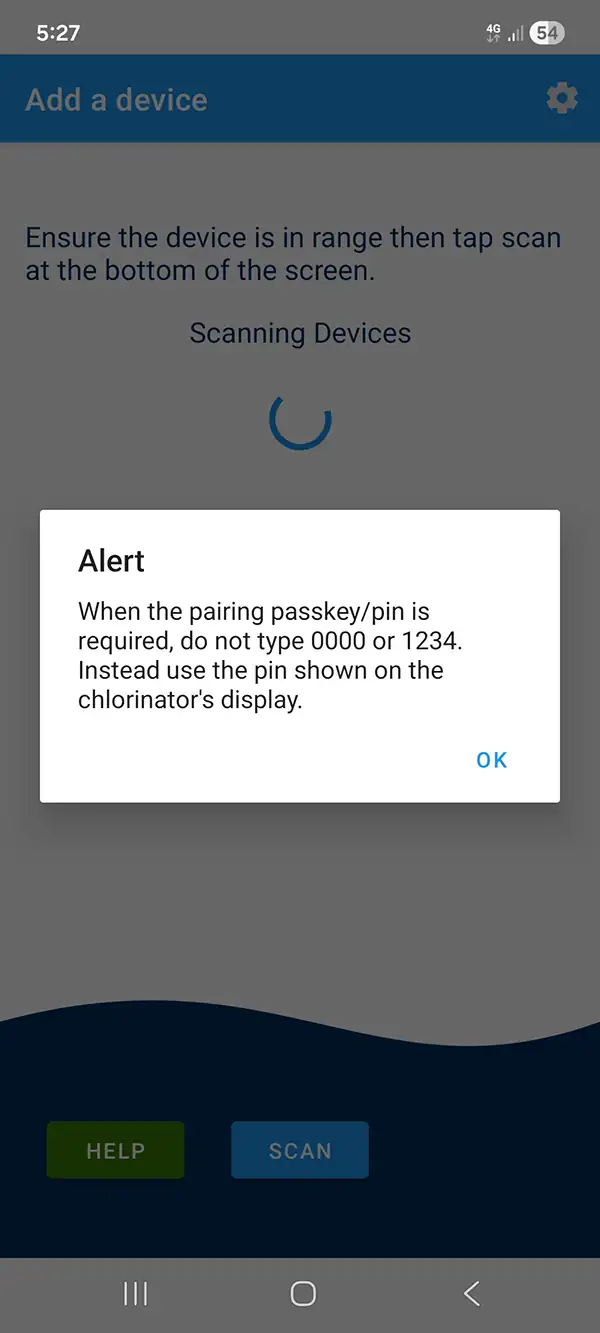
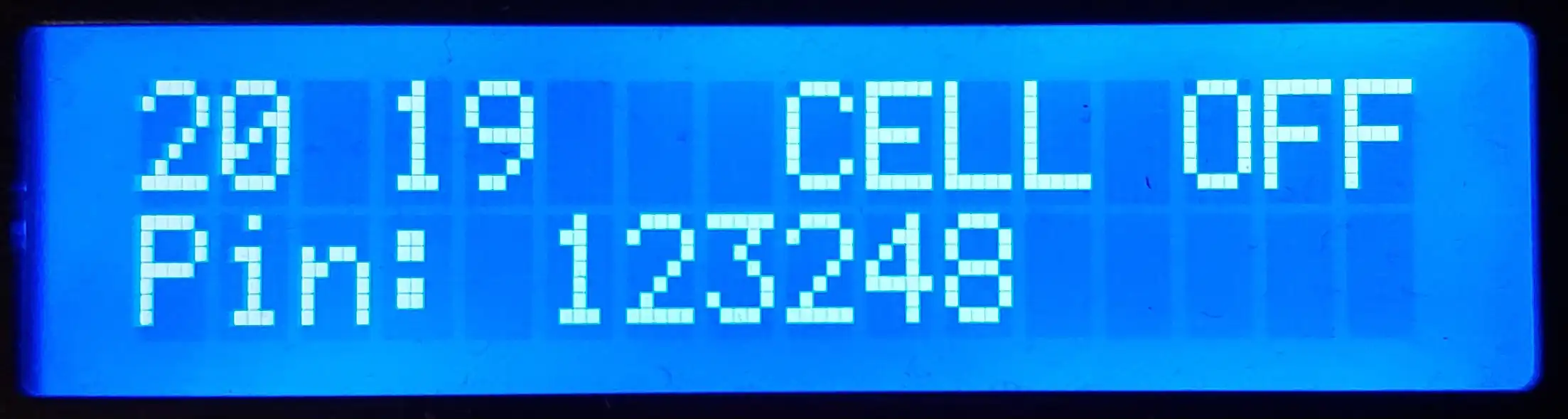
  • You will see an "alert" dialogue telling you to input the pin number that appears on the chlorinator's display. Press OK
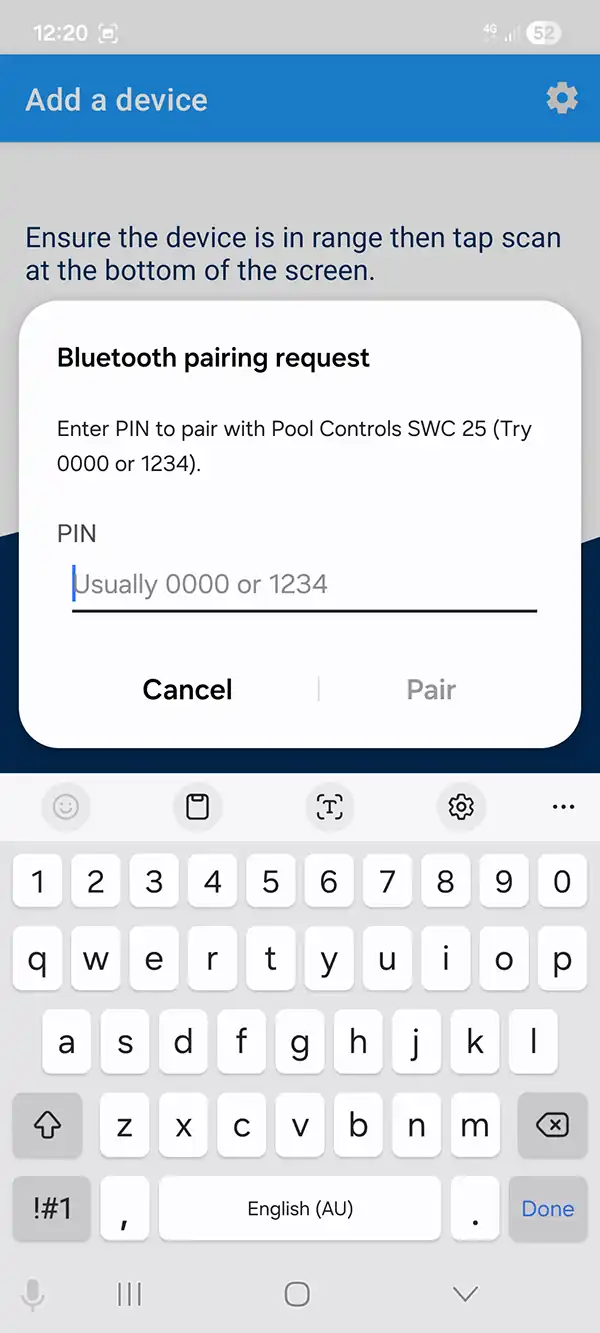
  • Input the pin number into the app.
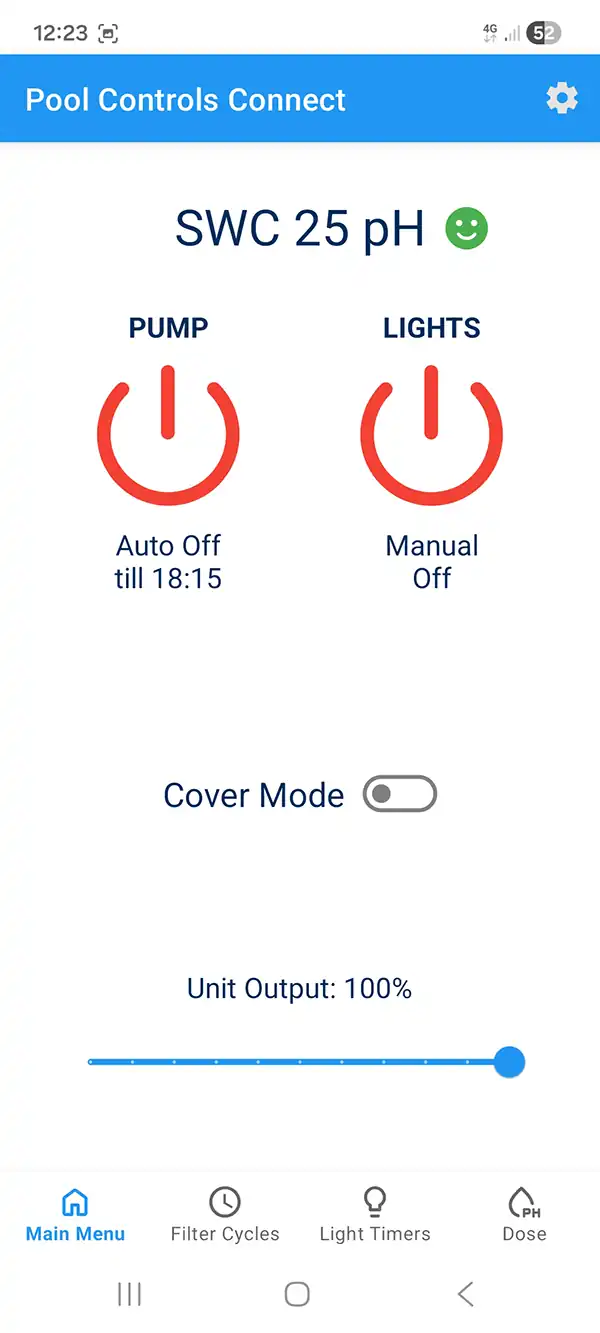
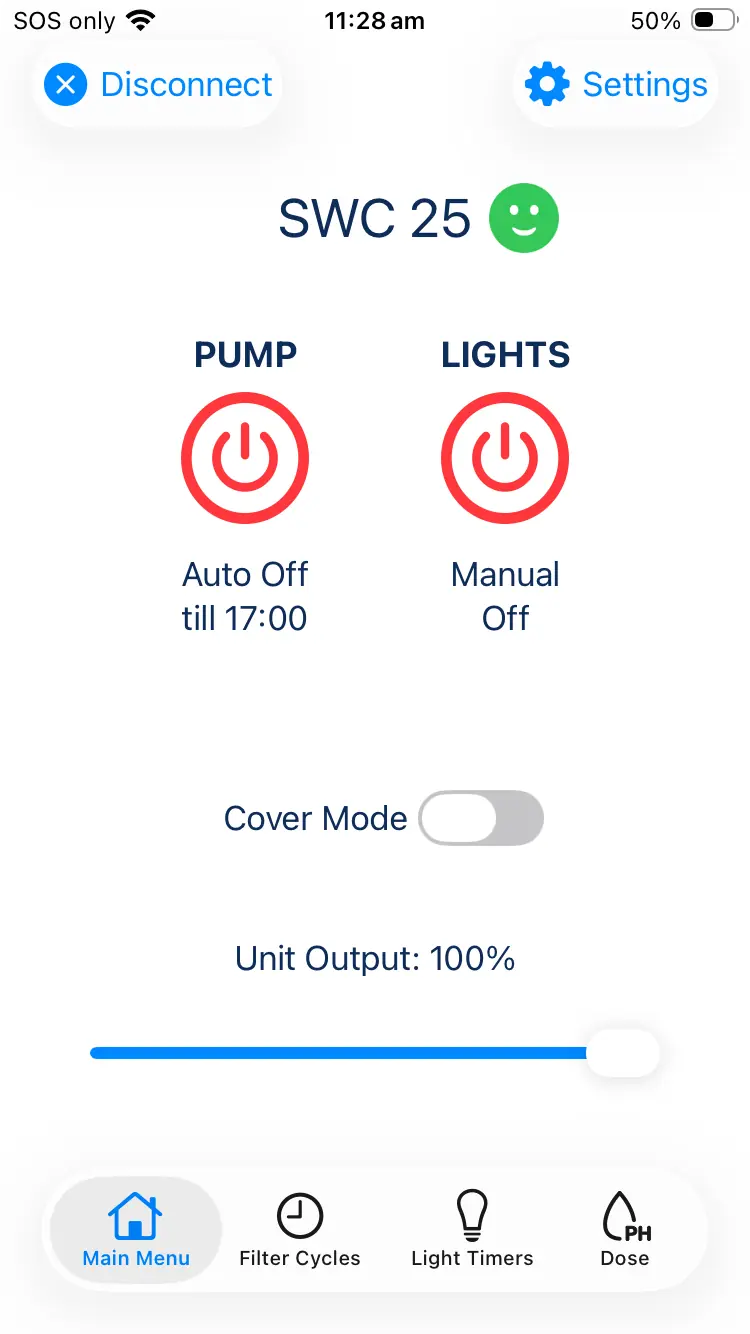
  • Once pairing is completed. You will be brought back to the "My Devices" screen. Tap on the chlorinator's name again to connect to the chlorinator. You will be presented with this screen:
  • Congratulations the app setup is now completed.

Android Troubleshooting

If you cannot connect the app to the unit, try the following:

Cannot discover or connect to the chlorinator unit.

  1. Check that the unit is powered on and the menu buttons are glowing red.
  2. Ensure you are within range of the Pool Controls unit. Note: Obstructions like walls will shorten the connection range.
  3. Ensure no other phones are already connected to the unit.
  4. Wait at least 2 minutes if connection is in progress.
  5. Restart the app and turn Bluetooth off and on again.
  6. Restart the phone (If paired do not un-pair the phone).
  7. Try full reset procedure, see below.

Cannot pair with the device (Pairing failed message)

  1. Ensure the 6-digit pairing passcode is correct.
  2. Input the pairing passcode within 30 seconds of it appearing on the unit’s display.
  3. Restart the app and turn Bluetooth off and on again, try and pair again.
  4. Try full reset procedure, see below.

Full Reset Procedure

This method will make the unit forget all previously connected devices. It is recommended to unpair/forget all previously connected devices via each phone’s settings menu.
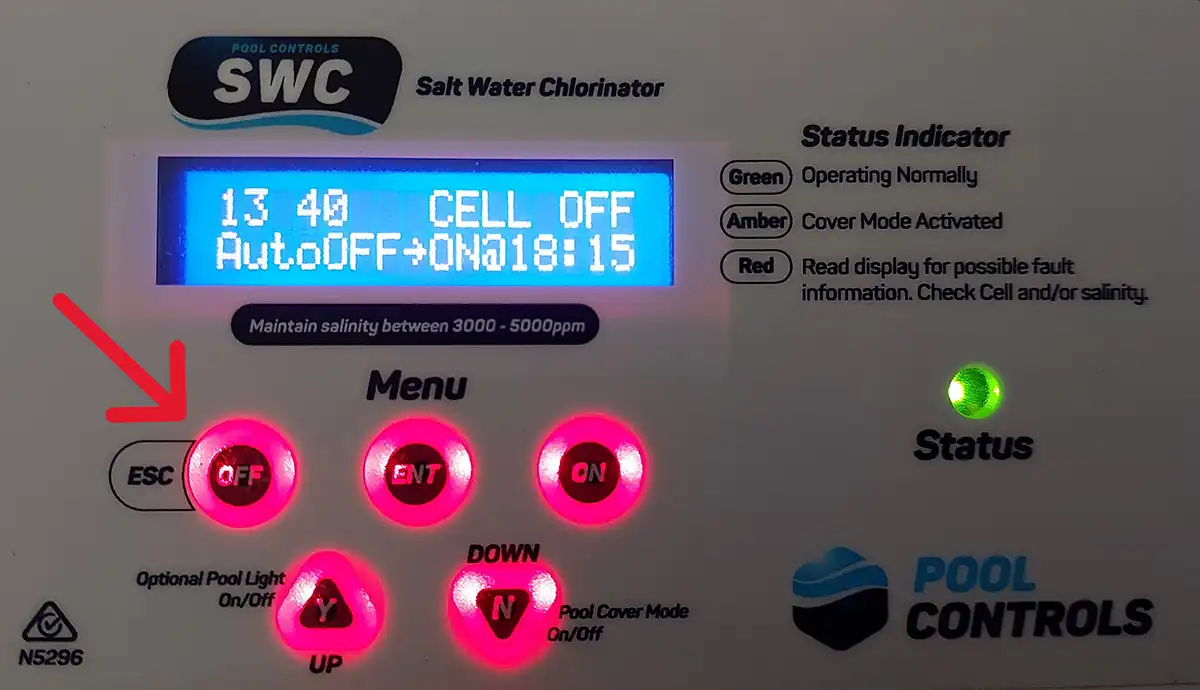
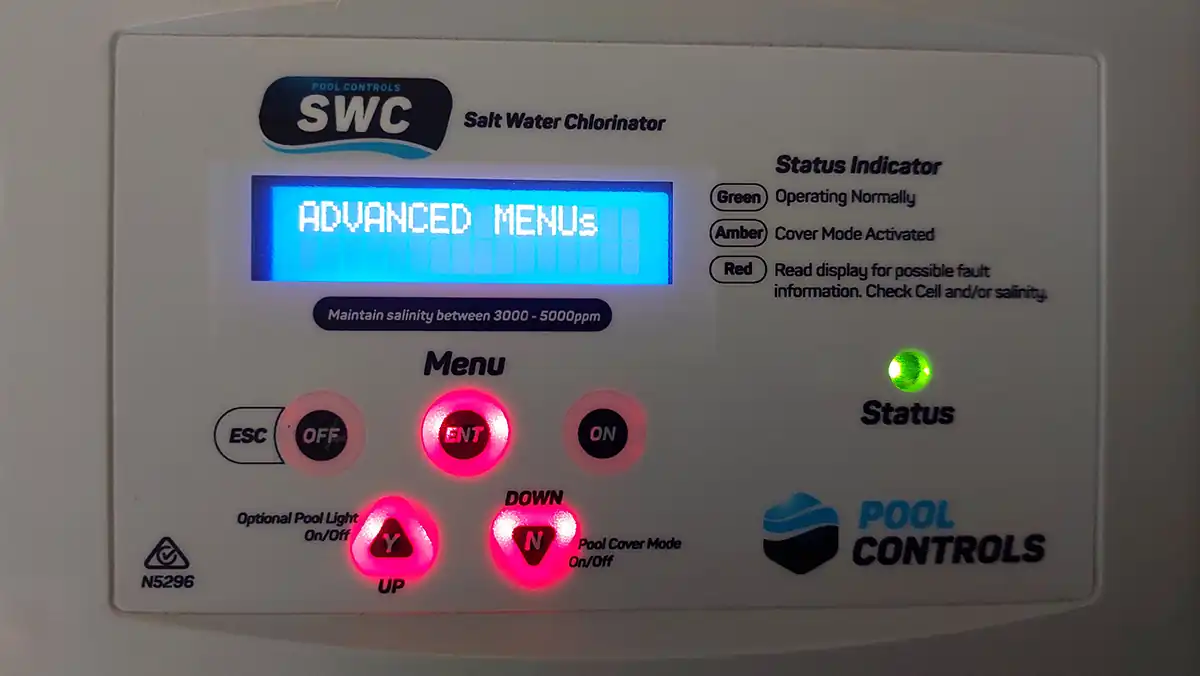
  • Go to your chlorinator unit and press the OFF button for 4 seconds. Ensure that you take the next steps quickly otherwise the unit will bring you back to the beginning again.
  1. The screen should display ADVANCED MENUs. Press ENT to enter.
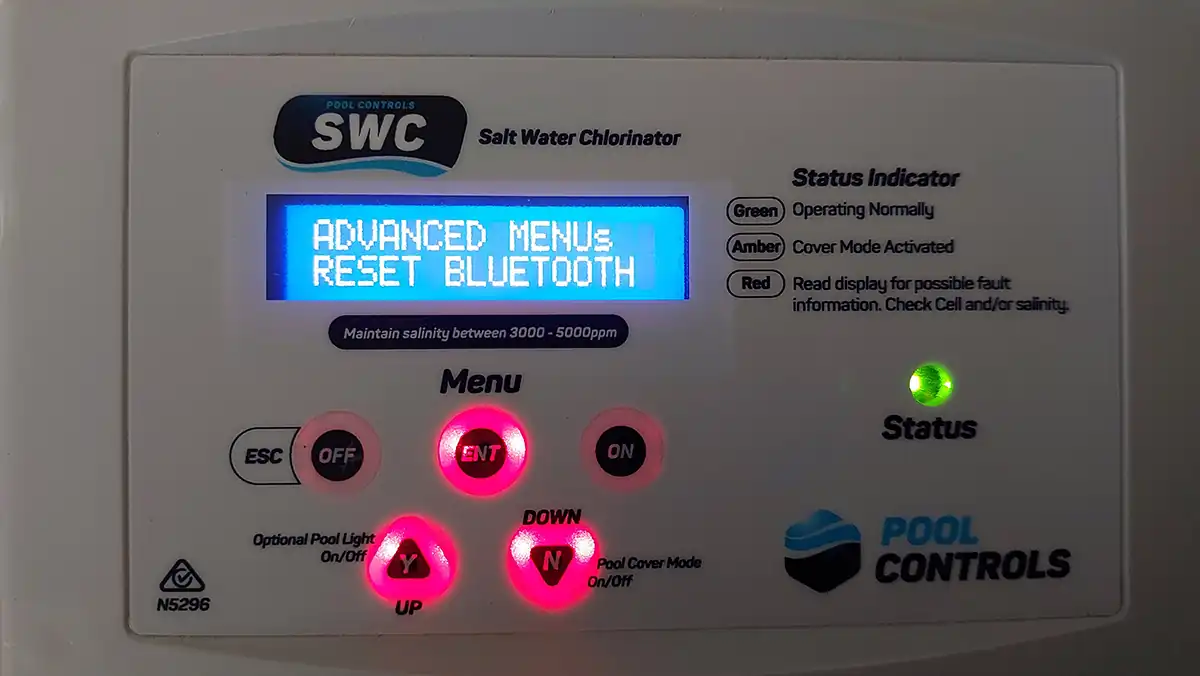
  1. Press DOWN until the menu displays ADVANCED MENUs RESET BLUETOOTH
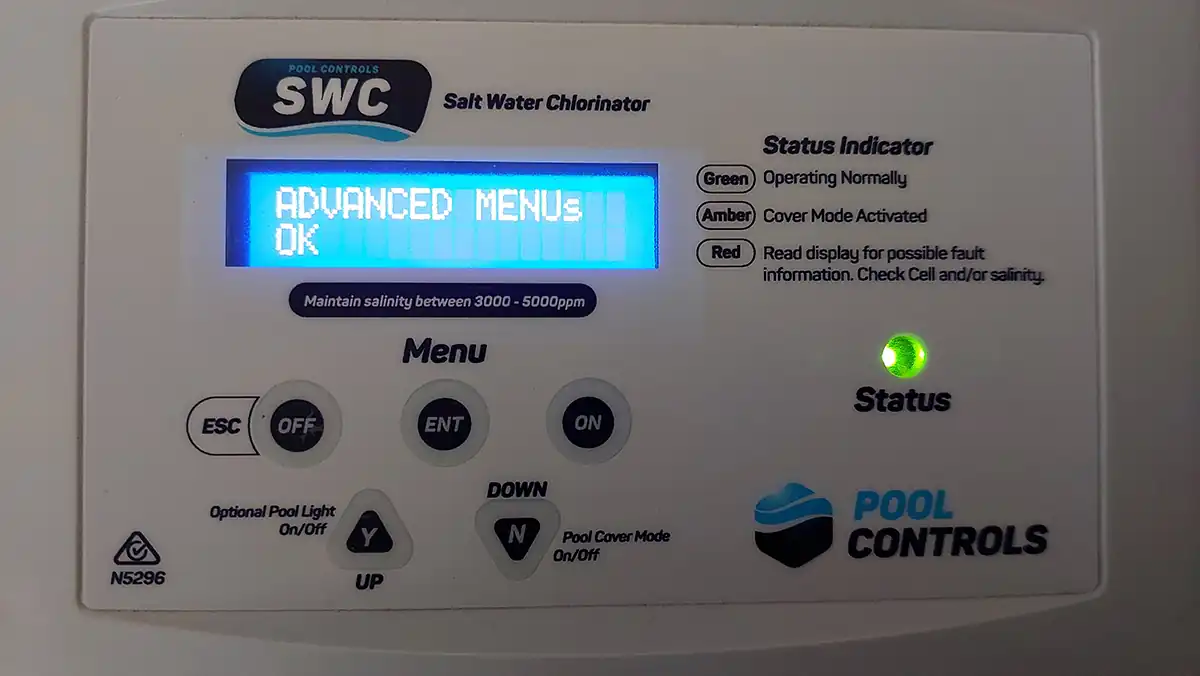
  1. Press ENT, the display should now show: ADVANCED MENUs OK. If it shows FAIL instead there may be a problem with the unit.
  1. Power off the unit, wait a couple of seconds and then power it on again.
  2. Skip this step if the unit has not been paired with yet.
    On your phone, unpair/forget the chlorinator unit via phone settings.
  3. Skip this step if the phone is an Android (not an iPhone)
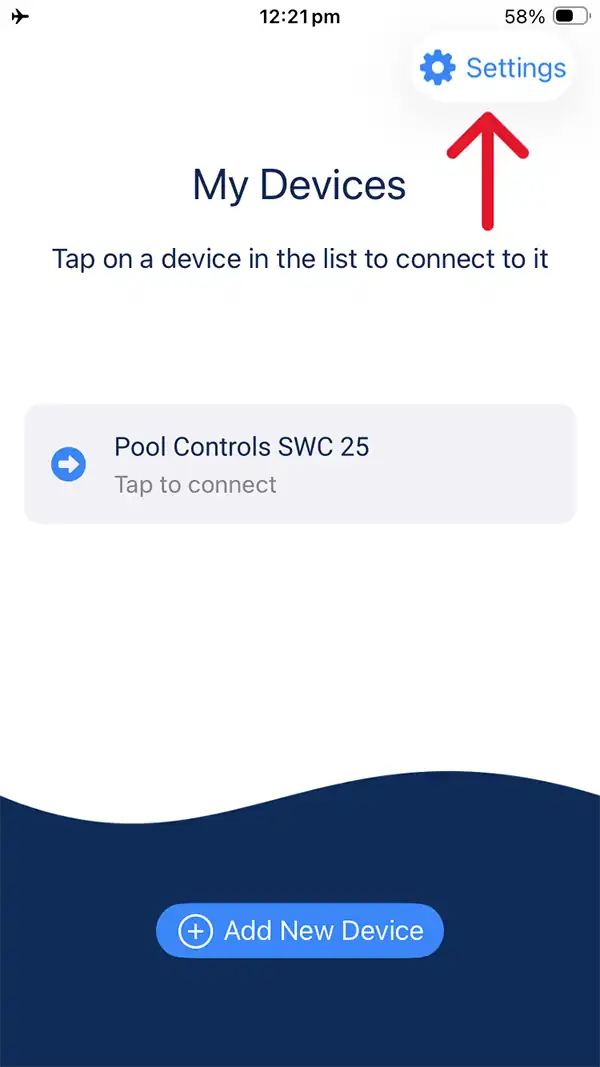
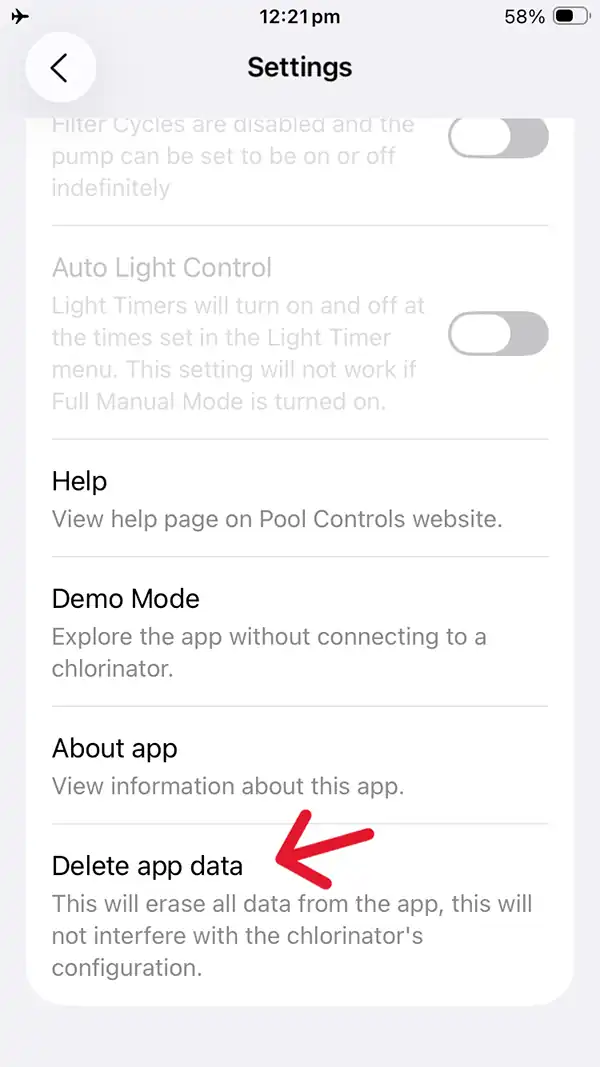
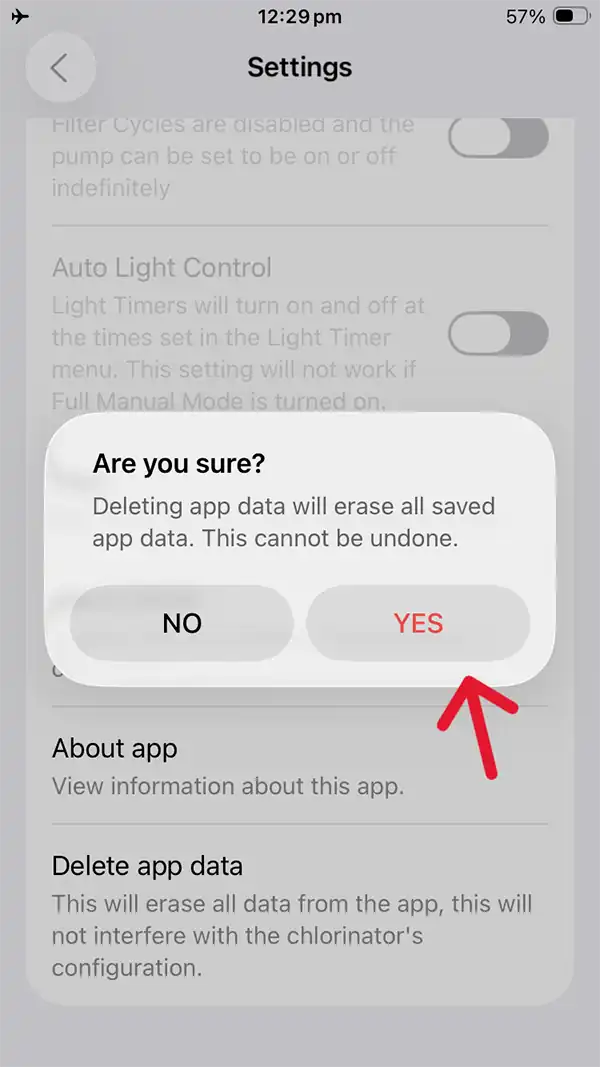
    On the app, go to app Settings, then scroll down and tap “Delete app data”, then tap “yes”.
  1. Restart your phone.
  2. Once the phone has restarted, open the app and follow the in-app prompts to try and connect with the unit again.

Customise your 
Pool Sanitation Solution

Talk to an expert and find out more about the best Pool Controls product for your pool and spa and how to customise the best solution for you.